
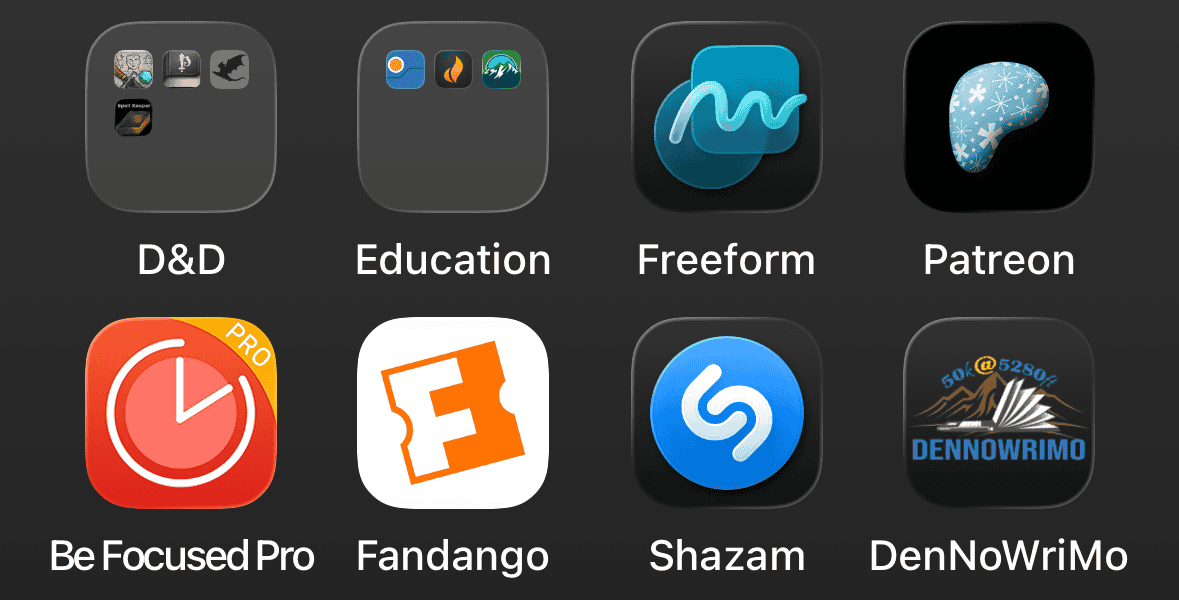
Did you know that you can add the DenNoWriMo Word Tracker right to the home page of your phone? This works for both Android and for iPhone! Make it easy on yourself and add this shortcut right to your phone:
iPhone
- Open your browser of choice and go to the word tracker page: https://dennowrimo.org/track-your-words
- Select the share button (looks like a square with an arrow going out the top).
- Note: Depending on the browser, this may be in different locations; e.g., Chrome currently has it directly in the URL bar, whereas in Safari you need to select the three-dot button next to the URL bar.
- Select the Add to Home Screen option (Note: you may need to select the View More button first depending on your iOS version.)
- Enter a name for the Home Screen icon (DenNoWriMo is our suggestion) then select the Add button.
- Now you should see the DenNoWriMo logo with the name you gave the icon on your phone's home screen!
Android
- Open your browser of choice and go to the word tracker page: https://dennowrimo.org/track-your-words
- In the top bar of Chrome (also works in Vivaldi), select the three-dot button.
- A menu will appear.
- Scroll down until you see Install and create shortcut.
- Select Create Shortcut.
- Name the shortcut what you'd like — what you name it is how it'll show up on your home screen.
Once you've given it a name you like, select Add. - You may choose whether to tap, hold, and drag the icon to where you'd like it to sit on your home screen or simply tap Add again to place it in a default location.
- Now you should see the DenNoWriMo logo with the name you gave the icon on your phone's home screen!
0 Comments